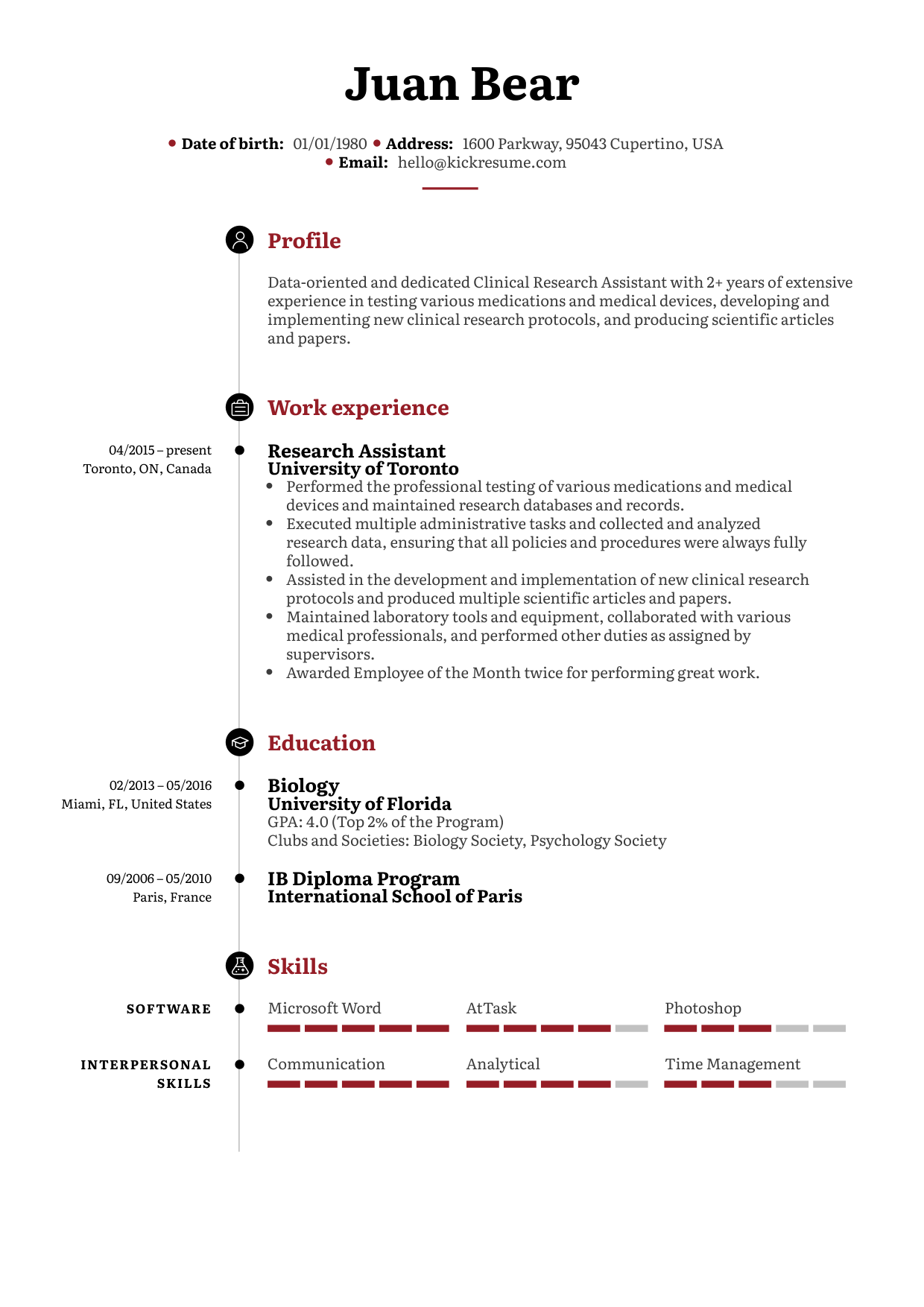
ChatGPT
 Perplexity AI
 Claude
How can I create a resume?
With our resume builder, you can create your resume in a few different ways, so it’s up to you to choose the one that best suits your needs. You can:
- Write your resume from scratch using only your own skills (ideal when you know exactly what you want to write in your resume)
- Use our AI tools to generate, rewrite, and refine your content (ideal when you need help with phrasing or you’re not sure how to write a resume)
- Import your resume from LinkedIn (ideal when you already have a great LinkedIn profile with all the necessary information)
- Use our professional examples as your first draft (ideal when you want inspiration from other people with the same job)
It’s up to you which option you prefer.
But first, let’s take a look at where to find it all:
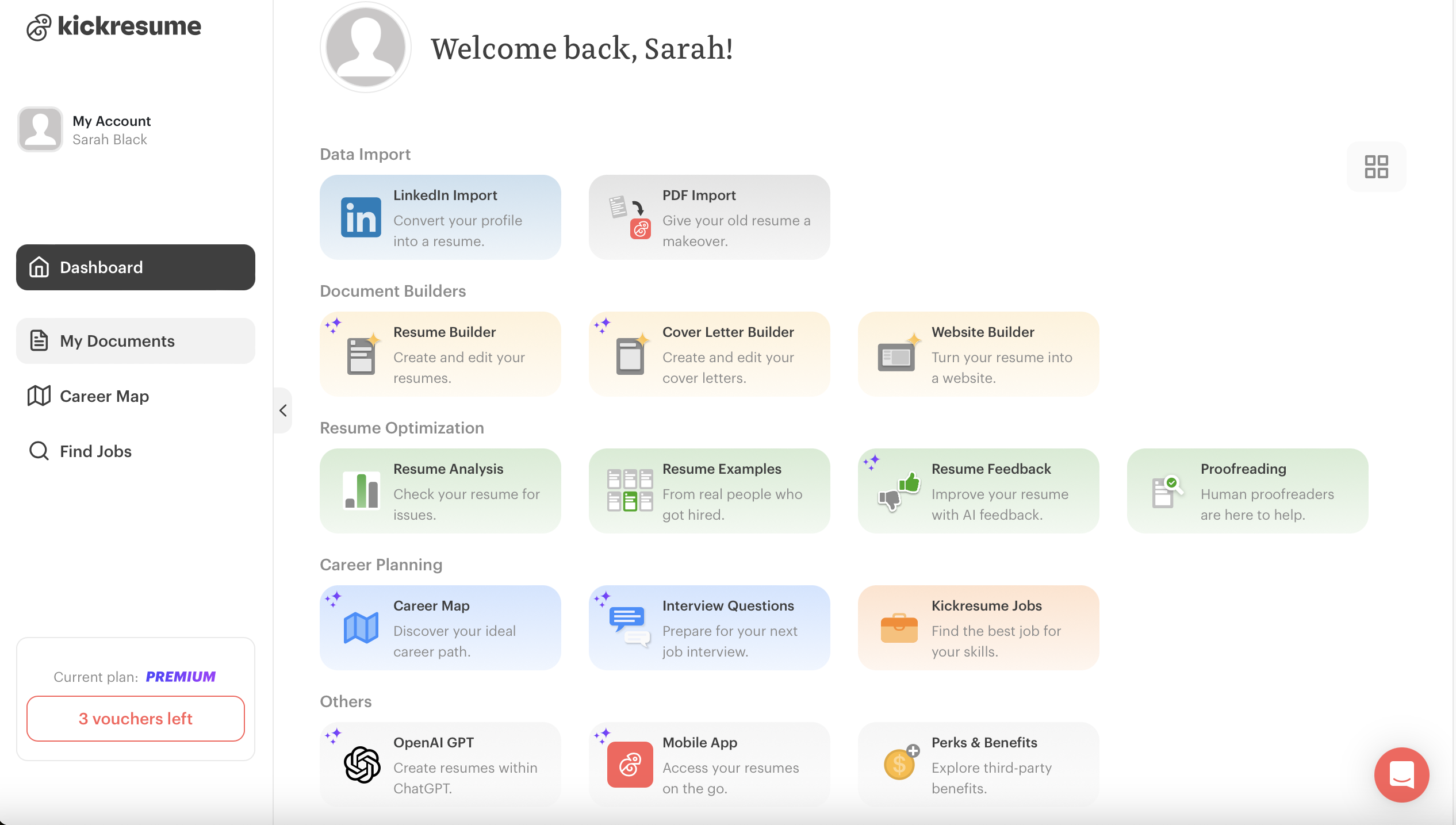
- Go back to your dashboard (you can find the “Dashboard” button in the side bar on the left)—that’s where you can access all your resumes, cover letters, websites and other tools.
- Your dashboard has 2 main parts: a main content area with all our tools and the sidebar. To start building your resume, just click on the "My Documents" tab in the sidebar. Or, if you prefer, you can click on the "Resume Builder" button in the main content area (that will lead you to "My Documents").
-
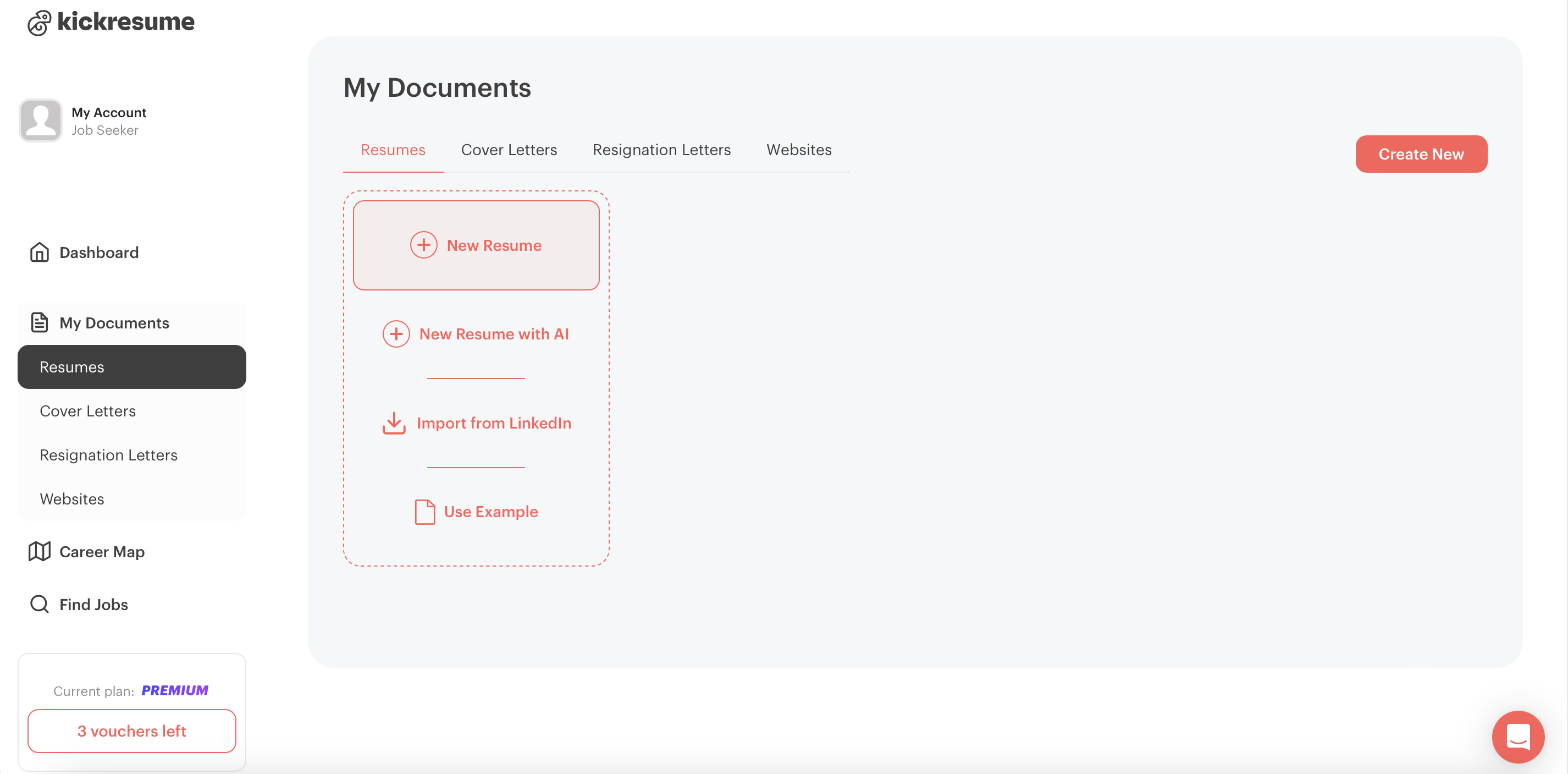
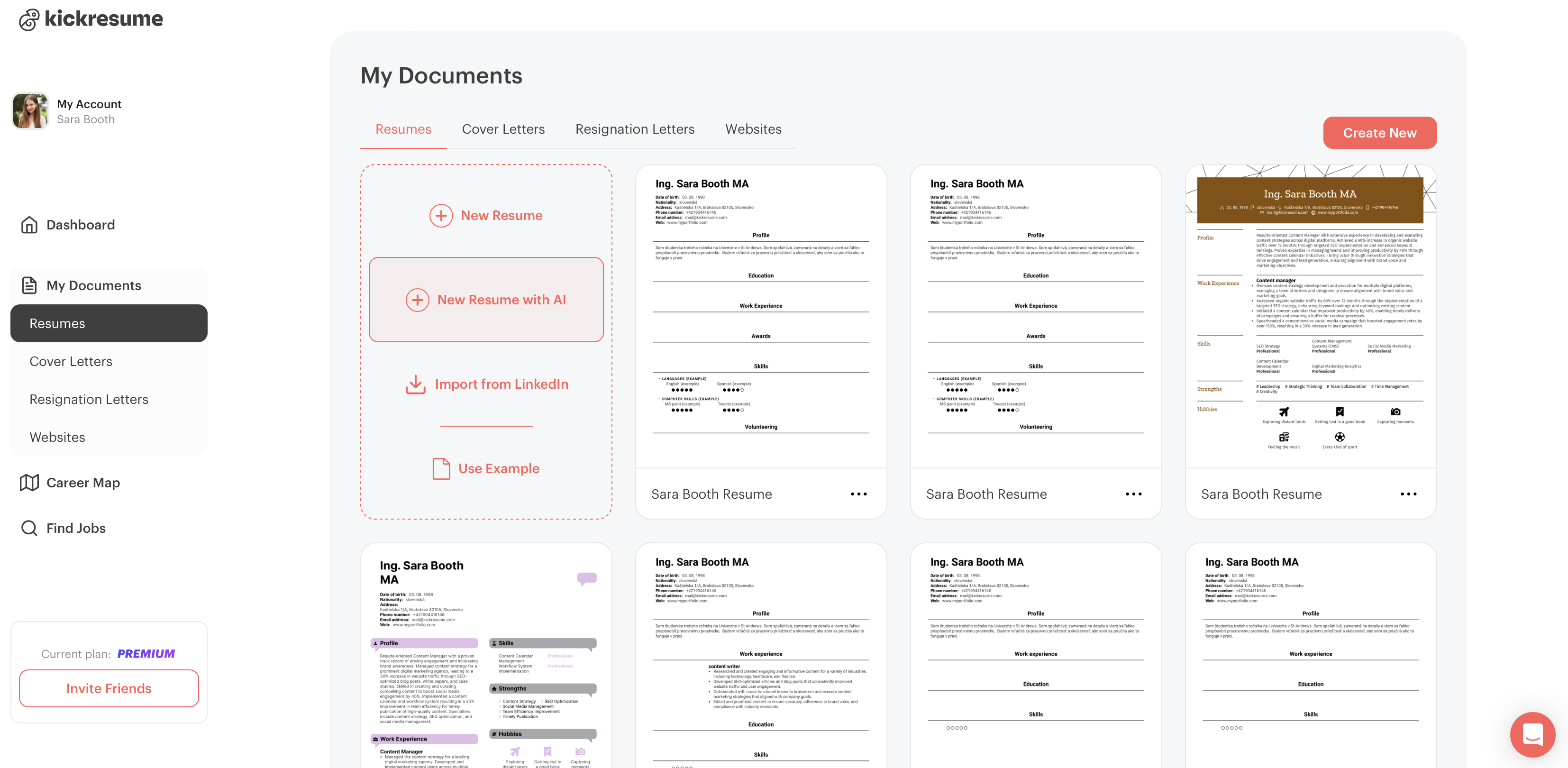
Now, you should see the "My Documents" section with all your resumes in one place, along with a tab offering 4 options for creating a new resume. Hover your mouse over it to get started.
You can choose from:
- New Resume
- New Resume with AI
- Import from LinkedIn
-
Use examples
Each of these options offers a slightly different approach to creating your resume. Let’s take a closer look at how each of them work.
1. Create a new resume from scratch
The first option is to create a resume from scratch, perfect for those who want full control. You’ll manually add all the information to your resume.
But don’t worry, in case you’ll need extra help you can always use our AI writer tool, to help you write and generate your content. So, even if you decide to create your resume manually, you still get the option to call AI for help in case you get stuck.
Here’s a how to create your resume manually, step-by-step:
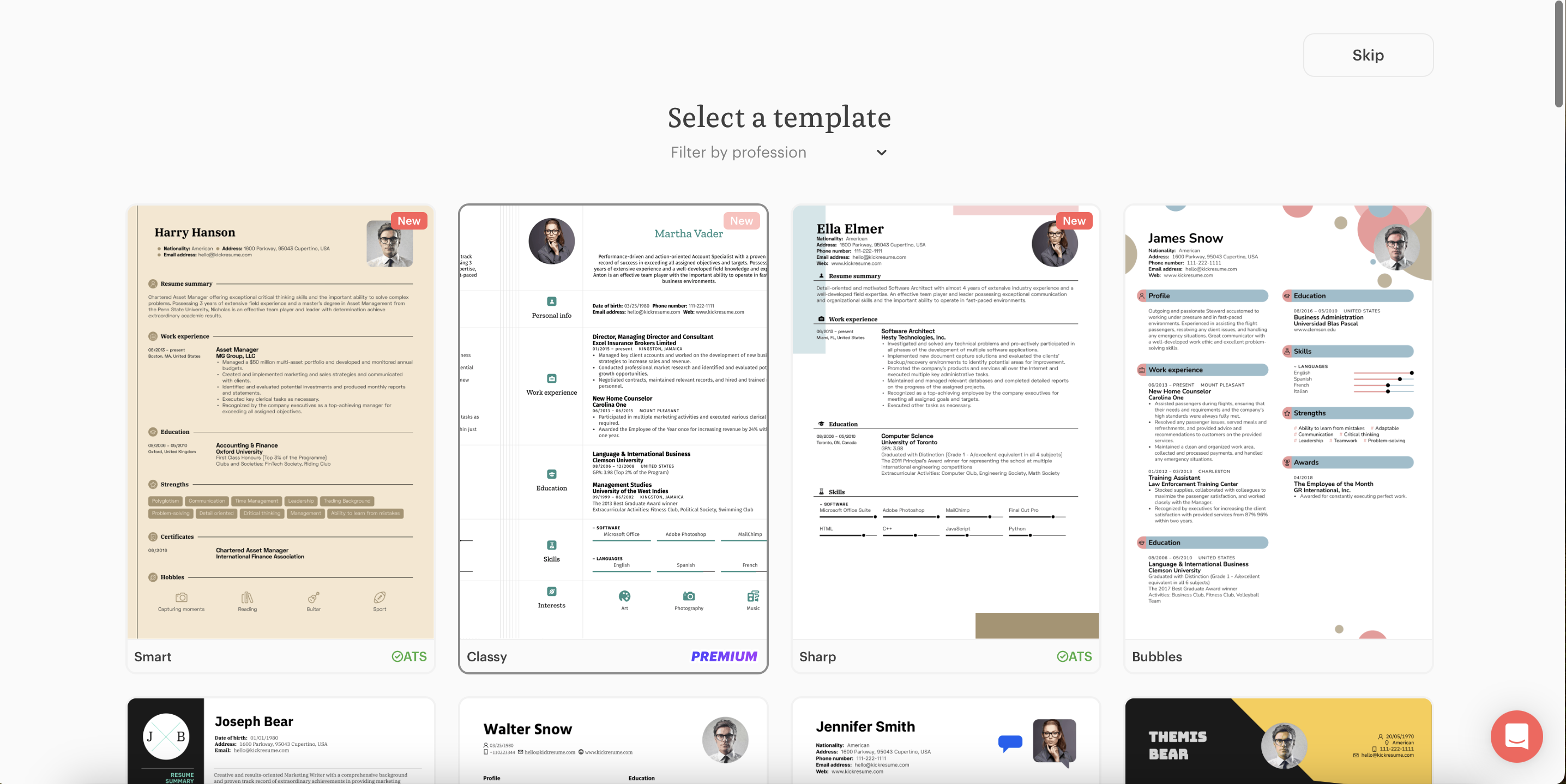
- Once you log in, on the left sidebar click on “My Documents”. Then, click on "+ New Resume" option as shown in the screenshot above. This will take you to Kickresume’s 40+ resume templates which you can filter according to your preference or profession. Pick one.
- Now, you can start filling in your personal information, education, work experience, awards, skill and volunteering, and other information you’d normally expect to see in a resume.
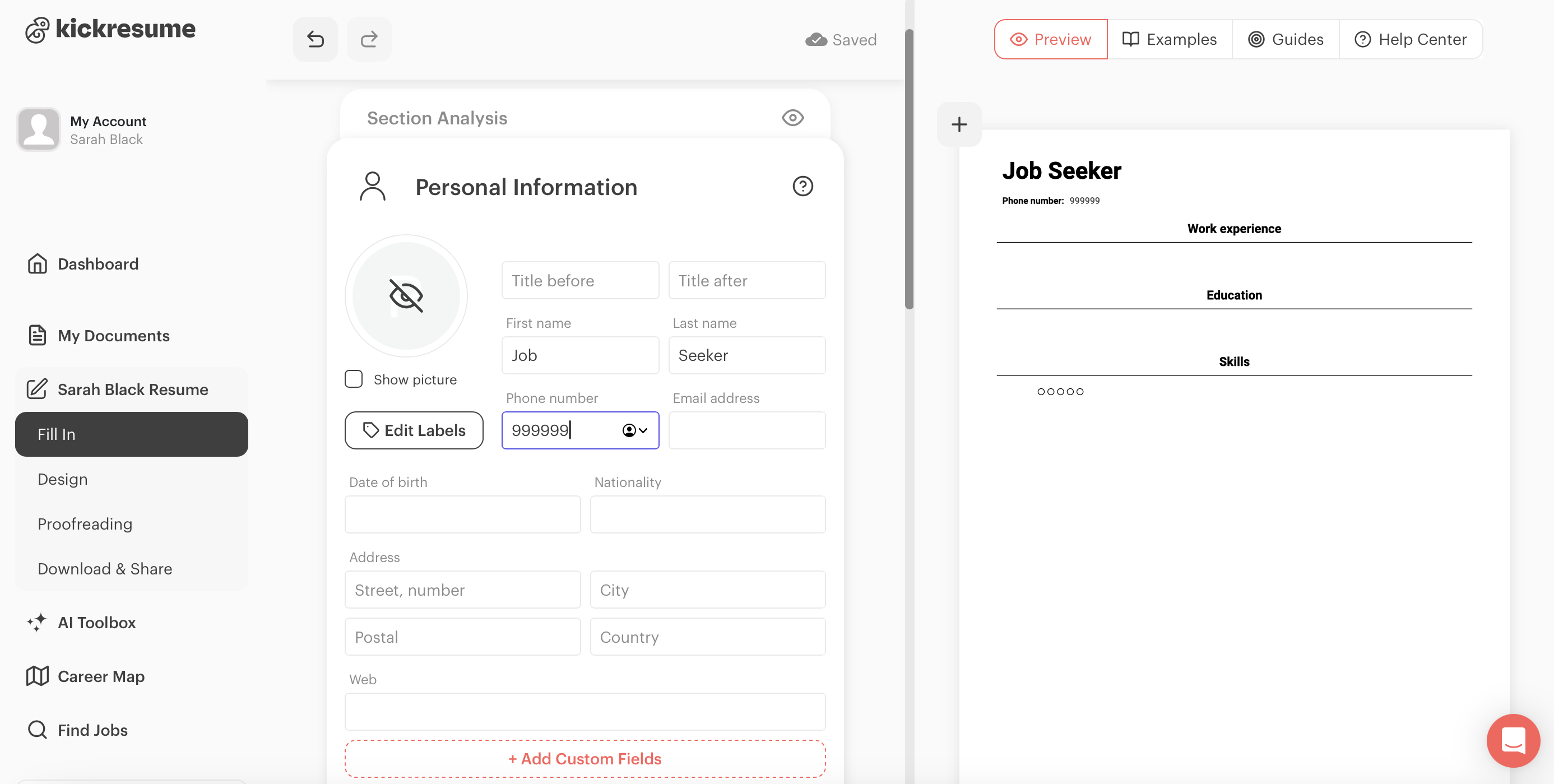
- As soon as you start writing the content of your resume another tab will appear above the section you’re working on—this is a helpful tool called Section Analysis. When you click on it, it shows you the strengths and weaknesses of each section and helps ensure it’s as strong as possible.
- And if you still feel like your resume would benefit from more sections, you can always choose to add any additional sections, such as:
- Achievements
- Awards
- Certificates
- Education
- Goal
- Graphs
- Hobbies
- Projects
Note: You can also customize and name each section as you prefer, by simply double-clicking on the name of the section and renaming it.
2. Create a new resume with AI
Similarly to the first option, if you choose "+ New Resume with AI," you'll end up with a great resume, but there is one key difference.
With AI, you get a head start as it generates your first draft based on your current job title.
Here’s how to create a new resume with AI, step-by-step:
- To begin, go to your document and click on the "New Resume with AI" option, as shown in the screenshot below.
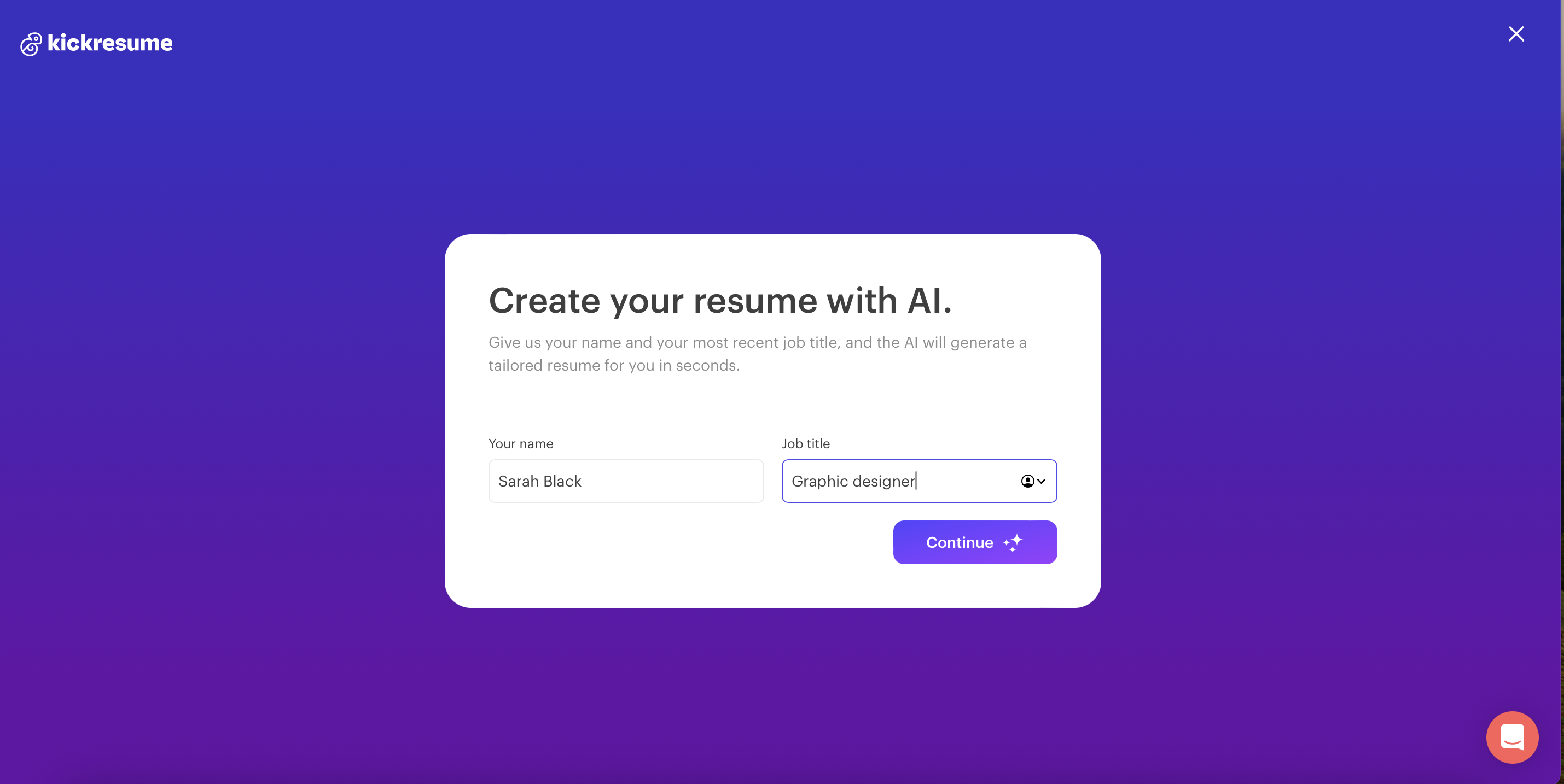
- Next, fill in your name and current position (for example: graphic designer).
- Then, click "Continue," select a template, and done! Your resume draft is ready, with some content already in place. If you don't like some of the content, you can either edit any part or generate each part separately using AI. Just click the AI writer button.
Note: Since the text is written by AI and not you, double-check for any information that may need to be updated or personalized. Nevertheless, it can still help you write your first draft.
3. Import your resume from LinkedIn
If you’re satisfied with your LinkedIn profile and believe that it would make for a good foundation for your own resume, you can import it into Kickresume and edit it from there (if needed).
Here's how to import your resume from LinkedIn to Kickresume, step-by-step:
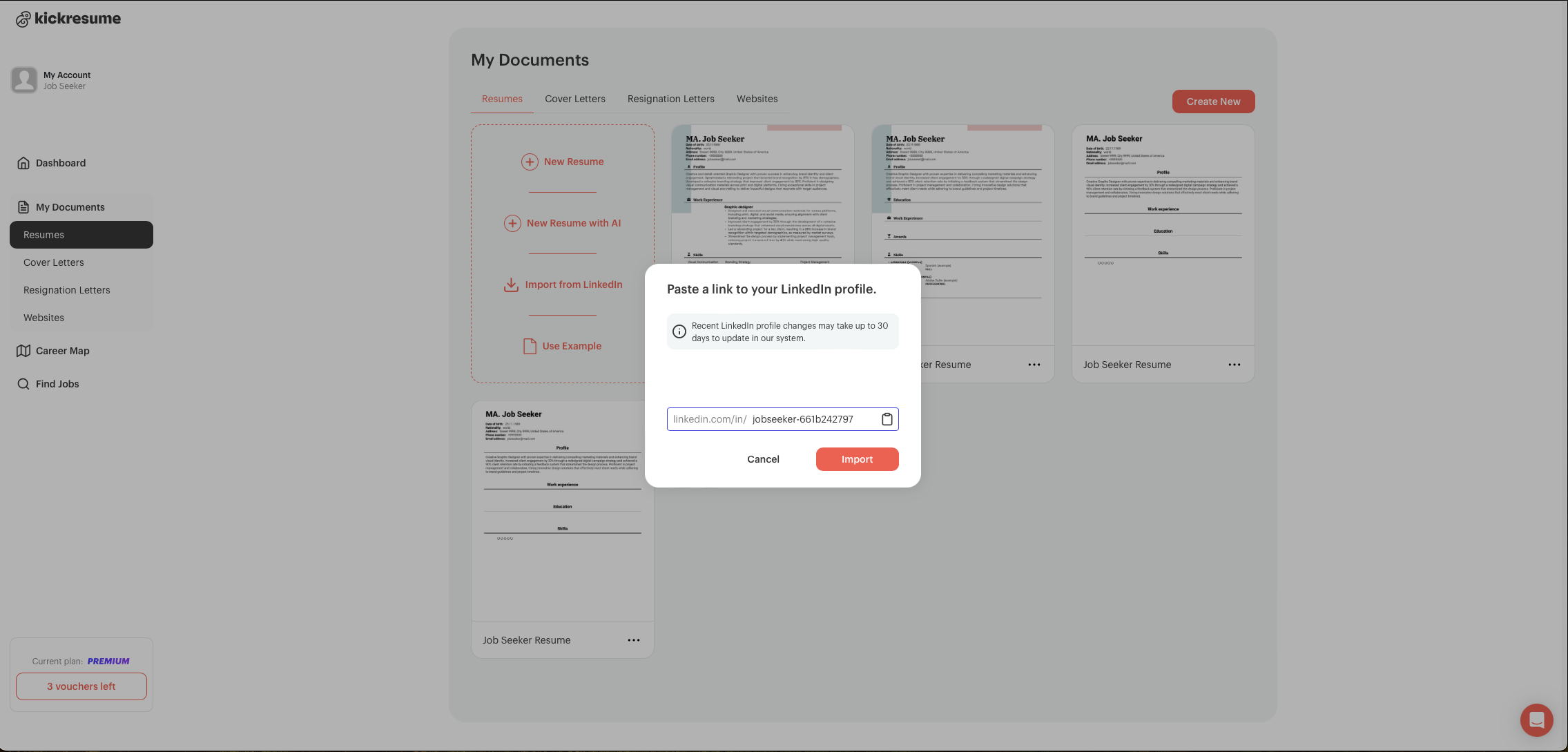
- Go to "My Documents" and click on the "Import from LinkedIn" option. Alternatively, click on the blue “LinkedIn Import” tool button right on the dashboard.
- Paste your LinkedIn profile URL to the pop-up window that will appear on your screen.
(Note: You can find your LinkedIn profile URL when you log in to LinkedIn, on “Me” in the topbar and select “View profile”. Here you can find your profile URL on the right hand side under “Public Profile & URL”). Then click "Import". - After a successful import you will be redirected to our resume builder, where you can edit your imported content if needed. You can also change the design.
4. Create a resume using one of our resume examples
Repurposing an existing resume example is great when you don’t know how to begin writing your resume. Our resume library has more than 2,200 resume examples organized by profession and industry.
Here's how to create a resume using one of our resume examples:
- Go to "My Documents" and click on "Use Example". This will take you to our resume library, where you can choose from 2200+ resume examples.
- Use the search field for a specific profession or the navigation bar on the right to find a resume that fits your needs.
- Click "Rewrite Sample with AI". This will copy the example to your profile and take you back to the resume editor.
- You can now start editing the resume example manually (or with AI). Think of it as your first draft—use it as a starting point. Rewrite it, edit it, and tailor it to suit your needs.
Want to reorder a section of your resume, change your template or tweak the design of your resume? No problem!
Can I change the order of the resume sections?
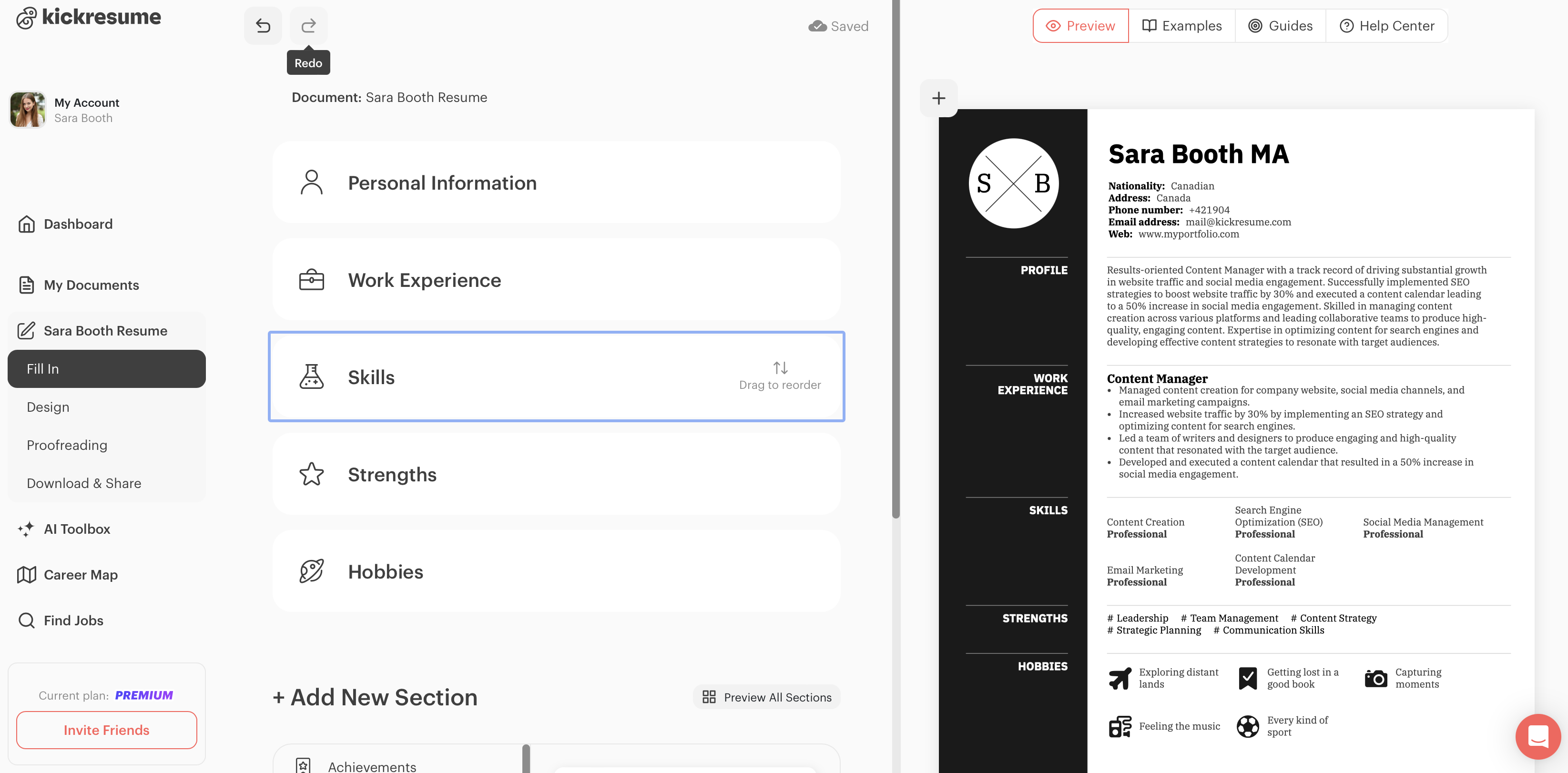
Yes, you can! The resume sections order depends on the template you choose, but can always change the order of the sections completely according to your preference. And it’s really easy too.
To reorder your resume sections:
- Hover over a section title (e.g., 'Experience') and drag the section to create the desired order.
Can I change the names of the sections and the labels within the sections?
Yes and yes! The section (and label) names our templates use are standard names which are widely used across industries. But we understand that sometimes you might want to personalize your resume even more. And honestly, it’s not our business what you call your sections, so you do you!
Here’s how…
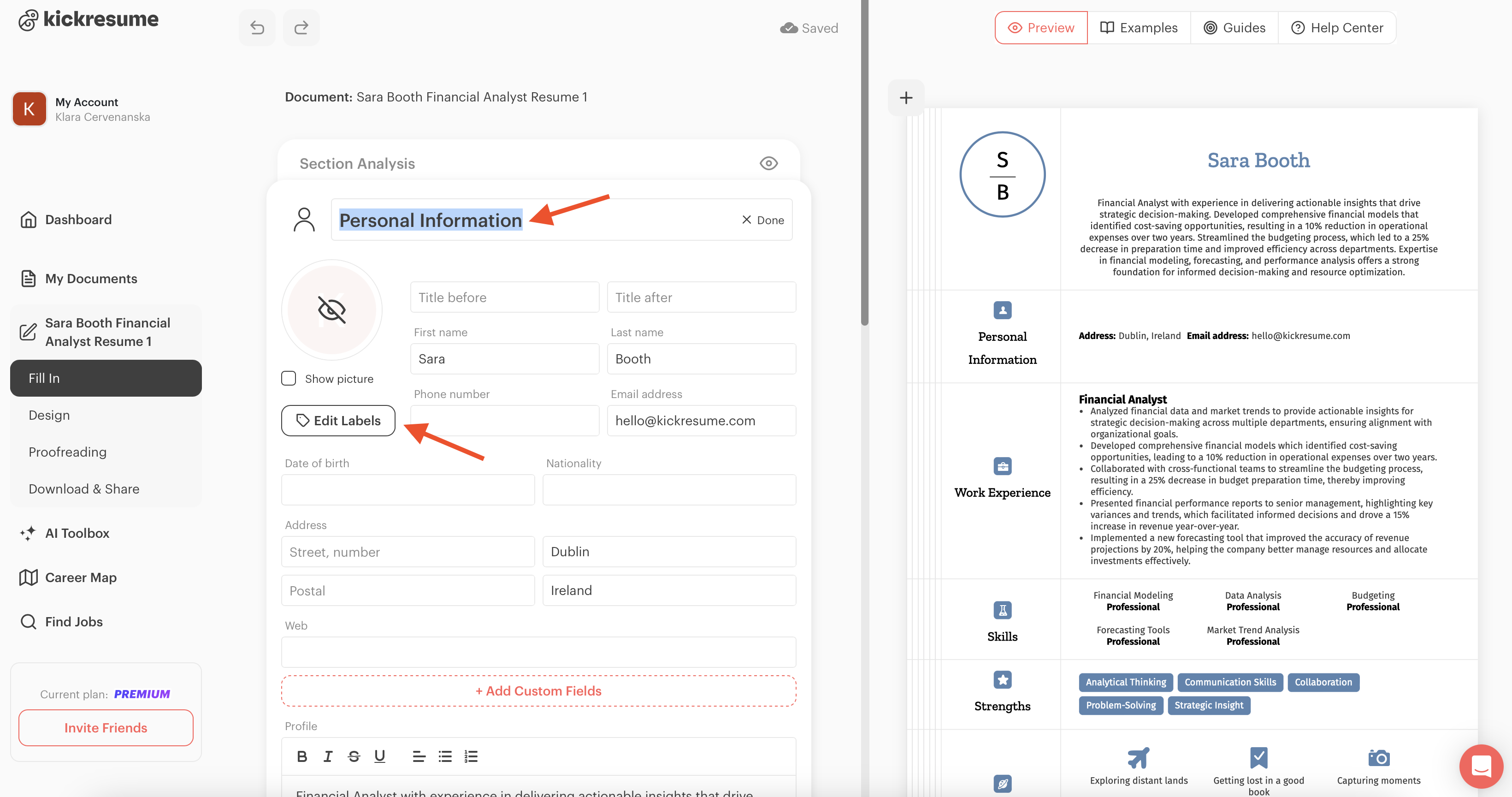
- To change the resume sections names/headings, click on the section you want to change the name of (e.g. Personal Information). Once you can edit the section, click on the section title to edit it (see screenshot below).
- To change the names of the individual labels within the sections (e.g. Email address → Email), click on the section and click “Edit labels” (see screenshot). When you’re finished, click “Done”.
How to change the template?
Kickresume offers more than 40+ templates for your resume. From more creative and colorful to minimalistic and simple designs that will make sure you pass the Applicant Tracking Systems (ATS).
While you have to choose a template early on, you can always change the template and customize it as you like at any time during the resume building process.
This is how:
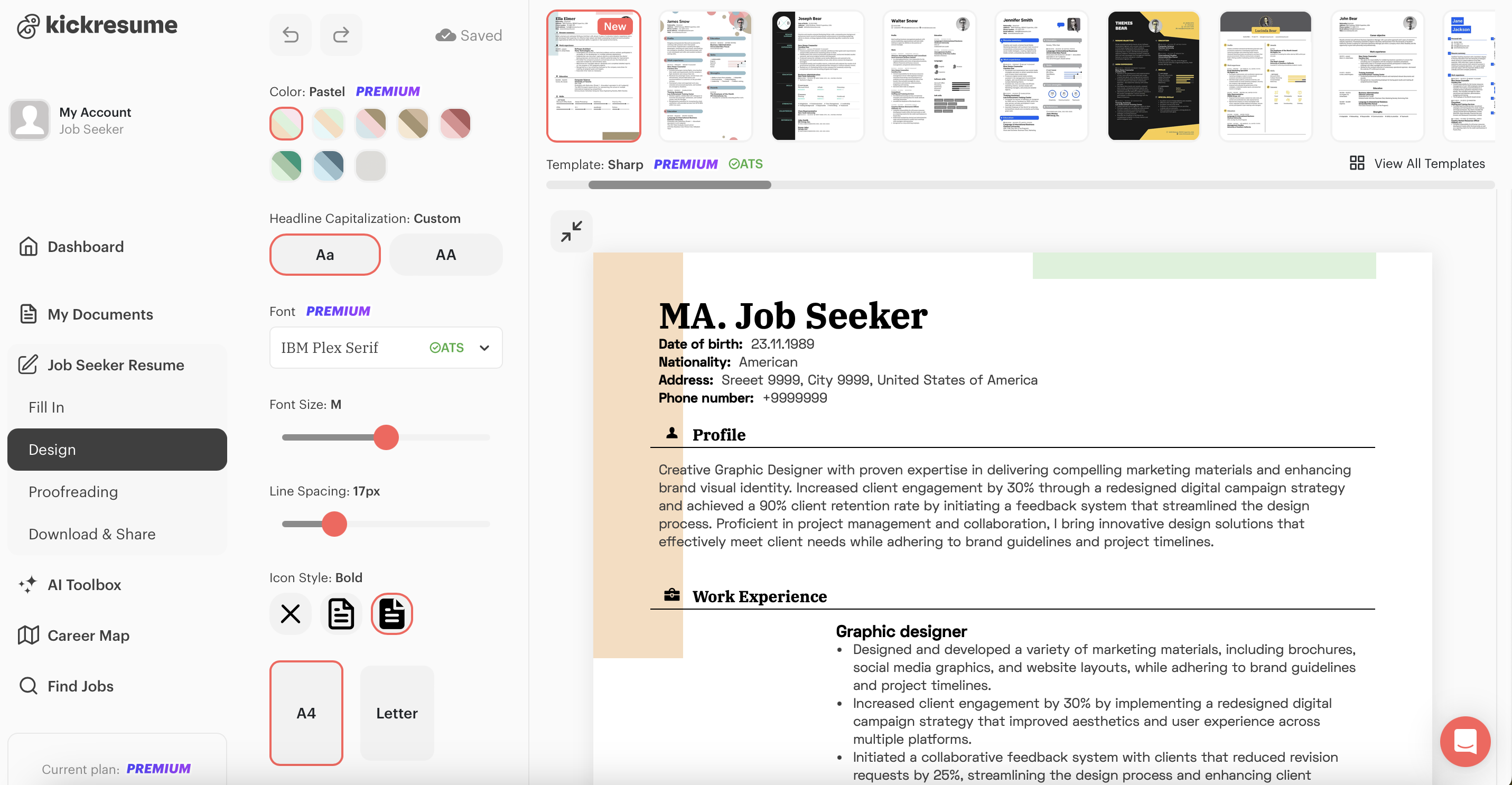
- In the side bar, click on "Design." Once you're on the design page, you’ll see your resume along with various template options above it.
- Click on any template you like to select it. It will be saved automatically.
Note: Templates marked with a blue star are premium templates & templates marked with a green ATS badge indicate that the template is optimized for ATS.
If you’re not sure whether to opt for minimalistic or more creative designs, check out this article to find out more.
Try out different designs and find the one you like the most. Each template also comes with different design variations. How to change it?
How to customize the design of my resume template?
Now, the fun part—fine-tuning your design to ensure your resume not only has great content but also looks professional and eye-catching.
All of our templates can be customized. You can change the color scheme, font, font size, line spacing, format (A4 or Letter), add or hide page numbers, or change the date & address formats.
Here’s how you do that:
- Hover over this and click on "Design." option on the side bar as you see in the screenshot below. Now you're ready to start customizing and making design changes.
- Here, you can explore a variety of templates, and on the left side of the screen, you can choose from different customization options, such as color, font, font size, headline capitalization, line spacing, background, and more.
- Every change you make is saved automatically, so you don’t have to worry about losing any of your progress in your resume, and you can change it as many times as you like.
Can I change the name of my resume?
Yes, you can change the name of the document anytime. There are two ways to do that:
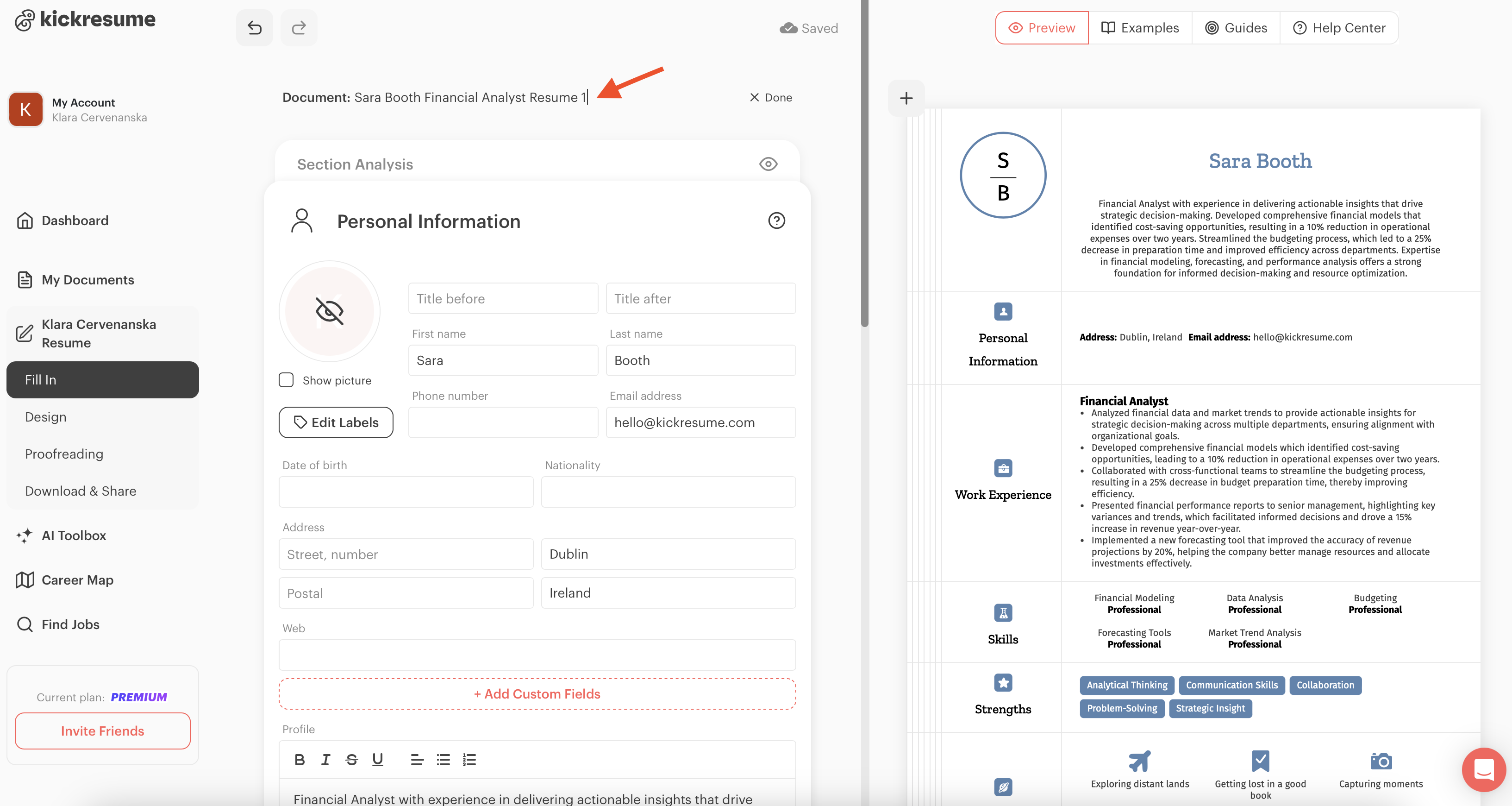
- Directly in the editing interface, click on “Fill in” on the side bar. Right at the top, you can see the Document name (check the screenshot below). Simply click to edit the name. It saves automatically.
- Go to “My Documents”, hover your mouse over the document name of any document, and click to edit.
How to download my finished resume?
When you’re finished with your resume, there’s just one thing left to do – downloading it.
You can download your resume in two ways:
- Right after finishing it in the editing interface.
- Or from "My Documents".
Let’s take a look at how you download your document from both of these options.
1. Right after finishing it in the editing interface.
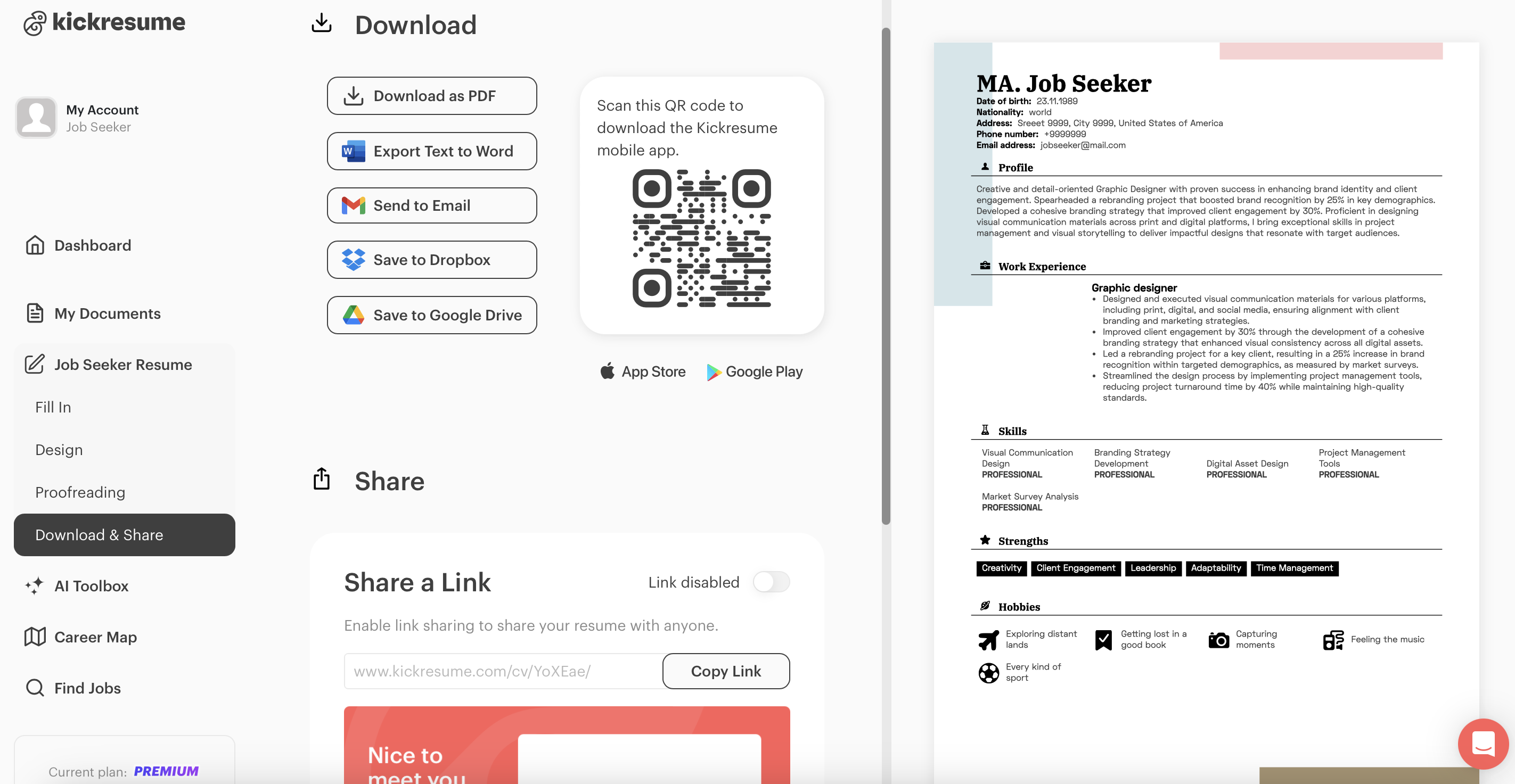
On the navigation bar move down to the "Download and Share." Here you can choose multiple options and formats you can download and share your resume.
You can download it as:
- PDF format
- Export Text to Word
- Send to Email (to yourself or directly to someone else)
- Save to Dropbox
- Save to Google Drive
- Or share your resume on social media via a URL.
2. Downloading your resume from My Documents
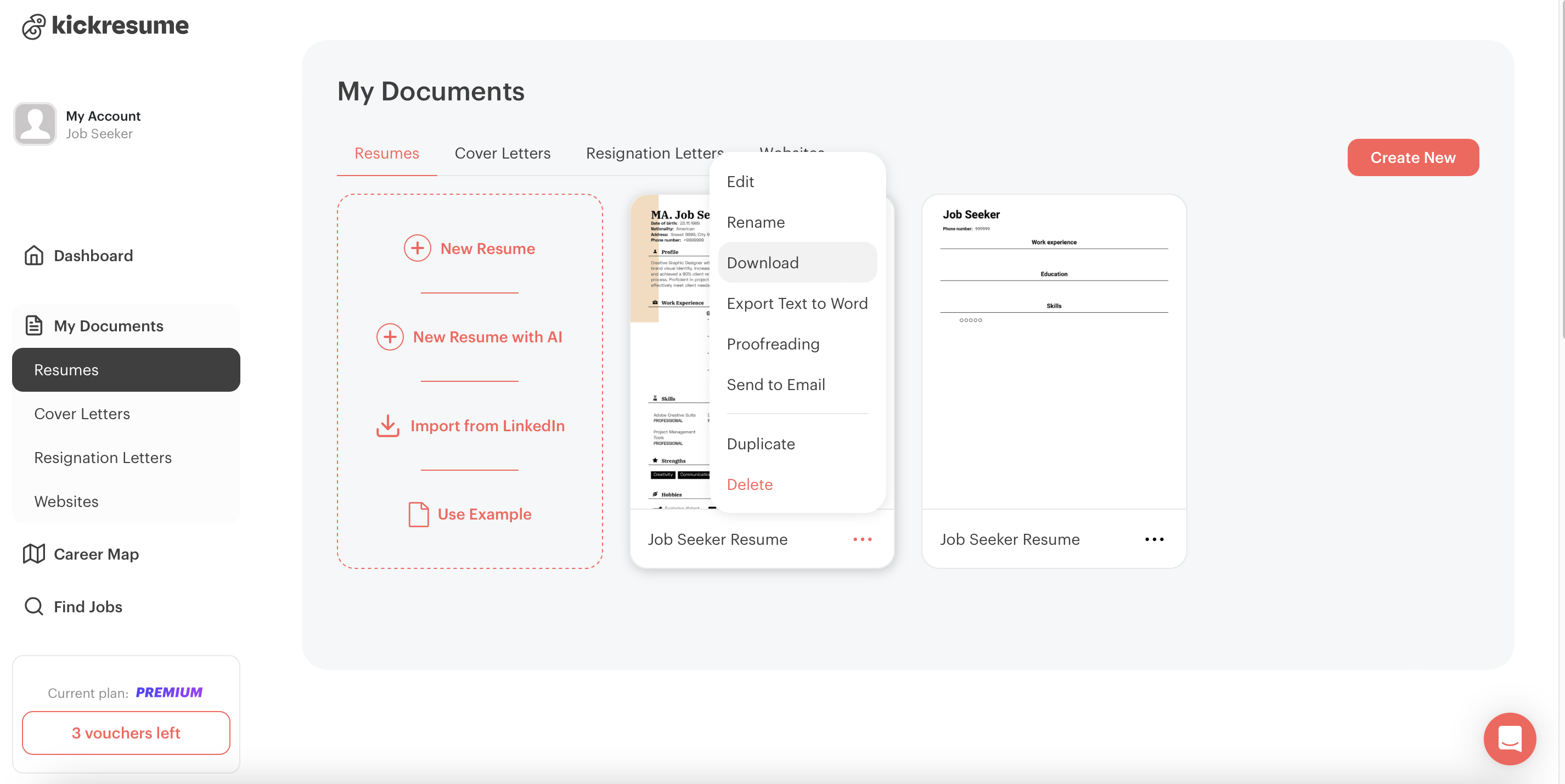
Another way to download your resume is from "My Documents" on the navigation bar. Here you can access all your career documents, which you can download.
Here’s how to do it:
- Hover your mouse over any document and click on the three dots next to the name of the document you want to download.
- A small rectangle will appear with options: Edit, Rename, Download, Export Text to Word, Proofreading, Send to Email, Duplicate, and Delete.
- Click on "Download." You should see a loading rectangle, and shortly after, your resume will be downloaded.
Now that you’ve got all the tools you need, it’s time to get started. Whether you’re crafting your resume from scratch, using AI to jump-start your draft, or simply refining an existing one, Kickresume has your back every step of the way.
So, what are you waiting for? Start building your perfect resume today—and watch those opportunities come knocking!
![How to Write a Professional Resume Summary? [+Examples]](https://d2xe0iugdha6pz.cloudfront.net/article-small-images/How_to_Write_a_Professional_Resume_Summary_.png)

![How to Describe Your Work Experience on a Resume? [+Examples]](https://d2xe0iugdha6pz.cloudfront.net/article-small-images/How_to_Describe_Your_Work_Experience_on_a_Resume_.png)