

 ChatGPT
 Perplexity AI
 Claude
Today, it’s not about whether you should use AI, but which tools can genuinely support your creative process. From generating ideas to polishing visuals and speeding up repetitive tasks, AI has become a practical partner in every designer’s workflow.
To help you navigate the growing universe of AI design tools, we’ve handpicked 10 best design tools to support and enhance a graphic designer’s workflow.
Why graphic designers should embrace AI design tools, not fear them
The role of the designer is evolving, not disappearing. AI takes on repetitive, time-consuming tasks like background removals, resizing, versioning, mockups so you can focus on creative thinking and strategy.
The numbers speak for themselves: According to Envato's State of AI in Creative Work 2026, 45% of creative professionals say AI helps them work faster and experiment more, freeing up time for fine-tuning. For graphic designers, daily AI use is at 40%, which means there's still plenty of room for growth as these tools get even better.
Employers increasingly value prioritizing designers who understand AI workflows because they can deliver faster, smarter, and more innovative results.
And in a competitive field like graphic design, that mix of intuition and efficiency is what truly stands out and makes you more attractive on the job market.
Pro tip: Want to see how other creatives balance design skills and tech-savvy presentation? Take a look at these graphic design resume samples.
Our curated list of the 10 best AI design tools
Whether you’re building brand identities, designing user interfaces, editing photos, or exploring new creative directions, AI gives you a powerful set of assistants to elevate your work.
Below, you’ll find 10 carefully selected AI tools that stand out not just for their capabilities, but for how they support real growth in your creative career.
1. Envato's AI tools
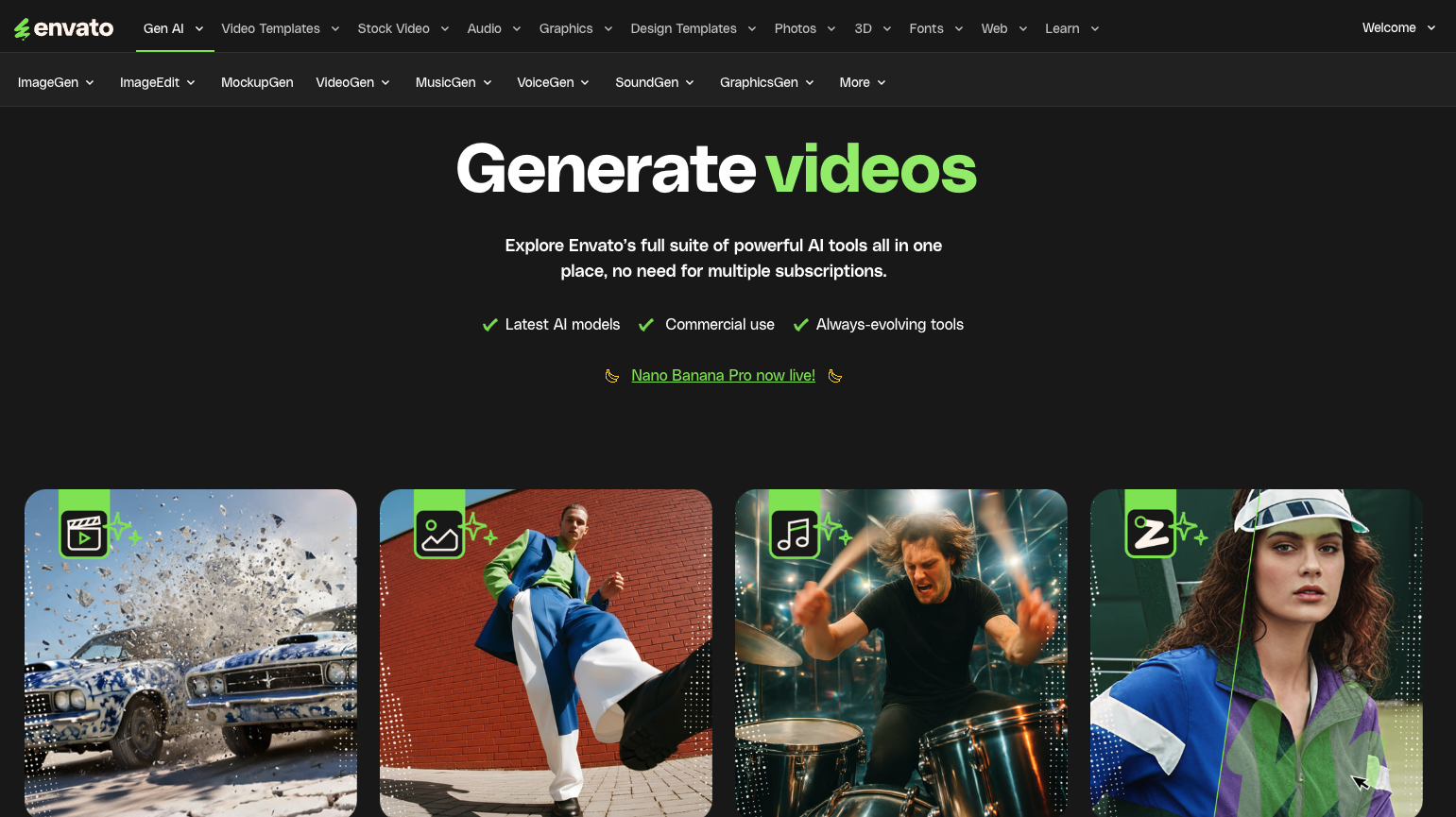
Envato combines millions of creative assets with a growing suite of AI features, including ImageGen, background removal, object detection, and quick photo adjustments. It’s a solid all-in-one platform for prototyping, mockups, and digital content creation.
Pros:
- Full integration with Envato's creative library. You get AI tools and ready-made resources in one place, so your entire workflow stays simple and unified.
- Great for rapid prototyping and mockups. The combination of AI generation and downloadable templates makes it incredibly fast to visualize and test design concepts.
- High-quality image manipulation tools. The AI tools help you enhance and adjust visuals with polished, professional results without needing advanced skills.
Cons:
- Requires an Envato subscription for full access. You can't use the complete AI toolset without committing to a paid plan, which might be limiting if you're just testing the waters.
- Best for digital assets – less comprehensive for UI/UX. While excellent for general graphic design, it's not as specialized for user experience work or interface design.
- Still evolving compared to older AI platforms. Some features feel less polished compared to more established AI design tools that have been refining their tech for years.
Envato's Pricing
There are 3 subscriptions available:
- Individual plan (16.50$ per month). Unlimited downloads of tens of millions of premium assets and templates, full AI stack (video, image, audio, music, voice and mockup generation), lifetime commercial license, and easy cancellation.
- Team plan. Everything in the Individual plan, plus: teams save up to 34%, the ability to scale and change members at any time, and one central location for all downloads.
- Enterprise plan. Everything in Teams, plus: custom licensing, AI tools available only on the Ultimate Plan, tailored indemnification, and SSO for more secure, scalable access.
2. Adobe Firefly
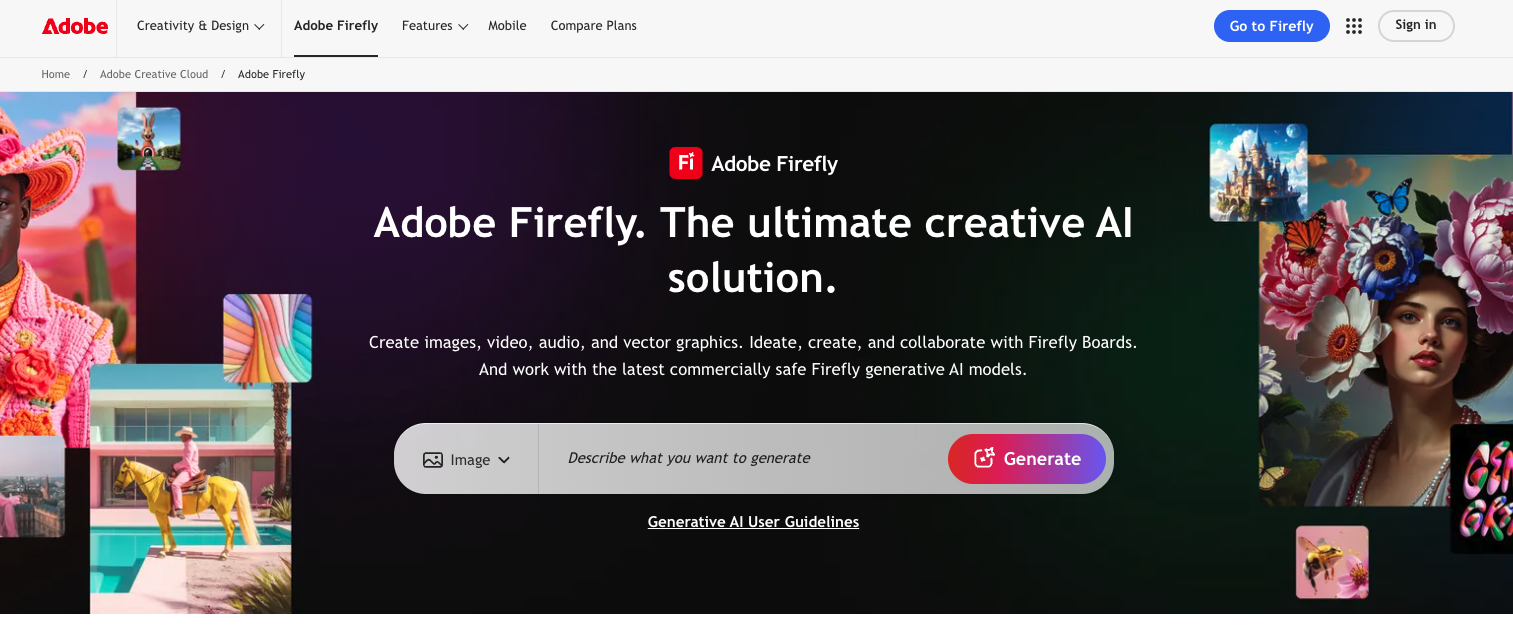
Adobe Firefly brings powerful generative AI directly into Photoshop, Illustrator, and Adobe Express, allowing you to create and edit visuals using simple text prompts. It’s ideal for designers who want AI inside their existing workflows without switching tools.
Pros:
- Seamlessly fits into existing Adobe workflows. If you're already using Adobe Creative Cloud, Firefly becomes a natural extension of your toolkit rather than another app to juggle.
- Professional, reliable output. The quality is consistently high and production-ready, which matters when you're working on commercial or client projects.
- Ideal for brand-safe commercial use. Adobe's training data and licensing structure are designed to minimize legal risks, giving you peace of mind for professional work.
Cons:
- Some features are locked behind specific plans. Not all Firefly capabilities are available on every Adobe subscription tier, which can be frustrating if you're on a lower plan.
- Requires familiarity with Adobe tools. While Firefly itself is intuitive, getting the most out of it assumes you already know your way around Photoshop or Illustrator.
- Limited credits with free plan. The free version gives you a taste of what Firefly can do, but you'll quickly hit usage limits if you rely on it regularly.
Adobe Firefly's pricing:
- Free plan: Limited generative credits for both standard and premium features
- Firefly Standard: plan starts at $9.99/month.
- Firefly Pro: $99.99/month. 4,000 credits for creative AI, edit with Adobe Photoshop on web and mobile, and design with Adobe Express Premium.
3. Midjourney
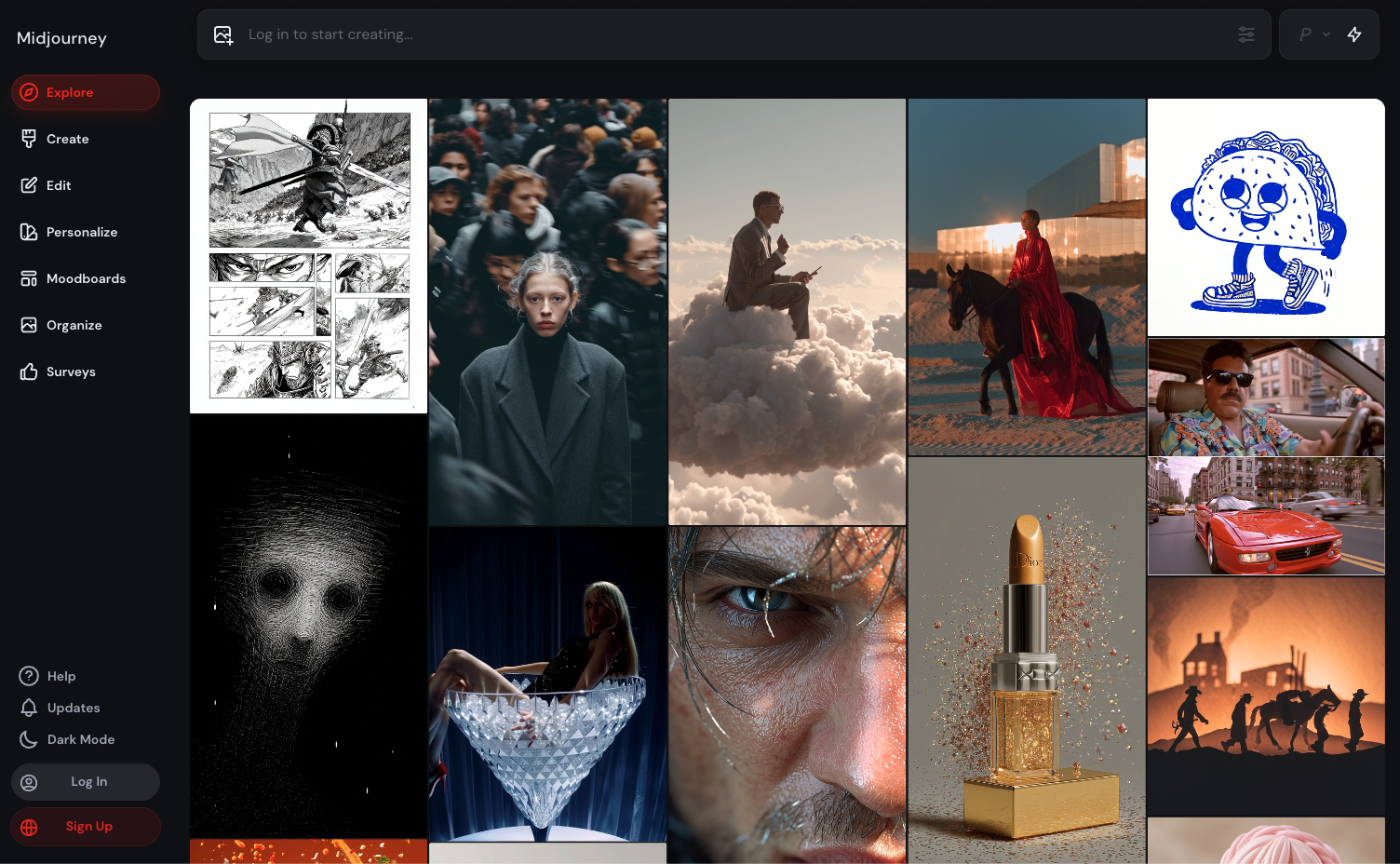
Midjourney generates striking, stylized visuals from text prompts, making it a popular choice for moodboards, concept art, and exploratory creative work. It’s especially useful for designers who want bold, artistic imagery to shape early project direction.
Pros:
- Delivers stunning, high-impact visuals. Creates stunning, high-impact visuals. Midjourney excels at bold, stylized art that feels more expressive than typical AI results.
- Great for concept exploration. Great for the early stage of a project when you are testing ideas and trying to lock down a visual direction.
- Wide community for inspiration. Being Discord-based means you're constantly exposed to what others are creating, which can spark new ideas and help you learn better prompting techniques.
Cons:
- Requires Discord to use. If you're not familiar with Discord or prefer standalone apps, the interface can feel clunky and less intuitive than traditional design software.
- Not ideal for precise commercial designs. While visually impressive, Midjourney often struggles with exact specifications, text rendering, or brand-compliant assets that commercial work demands.
- Can produce inconsistent realism. When you need true photorealism, its strong artistic style can make images look slightly off or overly processed.
Midjourney's pricing:
- Basic plan: $10/month
- Standard plan: $30/month
- Pro plan: $60/month
- Mega plan: $120/month
Midjourney plans differ mainly in generation limits, speed, and available features, so see the pricing page for details.
4. DALL-E 3

DALL·E 3 creates detailed illustrations and photorealistic images directly within ChatGPT, interpreting even complex prompts with clarity and context. It’s a fast, accessible tool for designers who want quick visual concepts without learning new software.
Pros:
- Accessible inside ChatGPT. You don't need to learn a new platform or switch between tools. If you already use ChatGPT, you can start creating with DALL·E 3 immediately.
- Excellent for storytelling in design. The conversational workflow makes it easy to develop narrative visuals and explore ideas with context and clarity.
- Quick results. DALL·E 3 produces visuals in seconds, which is helpful when you need fast inspiration or client-ready previews.
Cons:
- Limited control over advanced settings. Unlike more technical platforms, you can't fine-tune parameters like aspect ratio, style weights, or generation seeds with precision.
- May need several attempts for precision. While generally accurate, getting exactly what you envision can sometimes require multiple rounds of refinement and rephrasing.
- Struggles with text accuracy. DALL·E 3 often misinterprets written text in images, which can be frustrating for designers working on posters, branding, or layouts that rely on precise typography.
DALLE-E's pricing:
- Free plan: Limited access to DALL-E 3 with usage caps on ChatGPT free tier.
- ChatGPT Plus: $20/month. Includes access to DALL-E 3 with higher usage limits, GPT-4, and priority access during peak times.
- ChatGPT Pro: $200/month. Unlimited access to DALL-E 3, GPT-4, advanced voice mode, and priority processing.
5. Jasper AI Image Suite
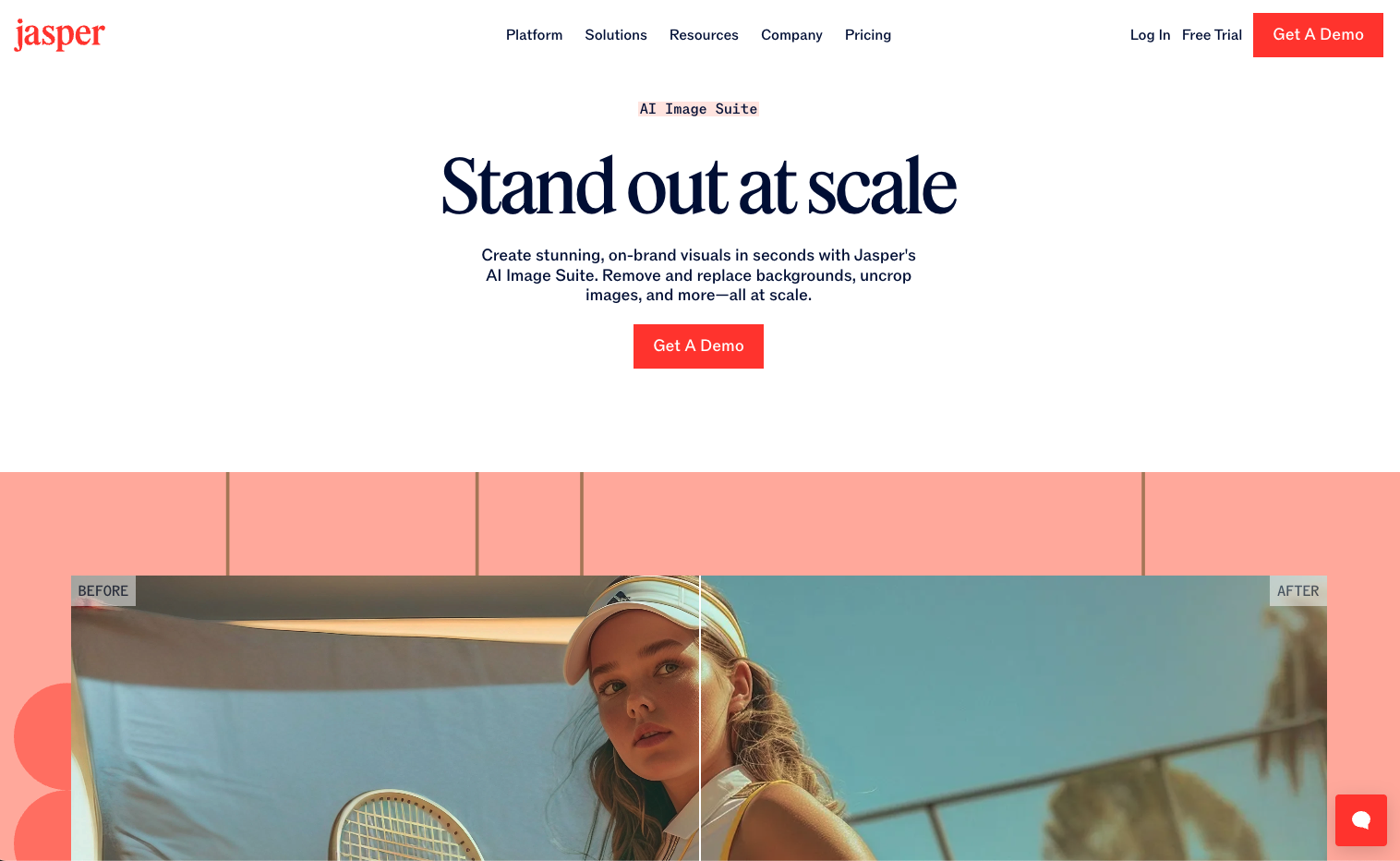
Jasper’s Image Suite lets designers generate branded visuals alongside AI-written copy, streamlining marketing content creation in one place. It’s especially useful for designers working on campaigns, social media graphics, and messaging-driven projects.
Pros:
- Great for marketing-focused graphic designers. If your design work centers on campaigns, social content, or branded visuals, Jasper’s combination of copy and imagery can streamline your entire process.
- Fast ideation for branded assets. Graphic designers can move from concept to polished marketing materials quickly, which is valuable in fast-paced creative teams.
- Content and visuals in one place. Having messaging and graphics within the same system helps designers maintain consistency and avoid jumping between multiple tools.
Cons:
- Limited creative control for designers. Jasper offers fewer fine-tuning and stylistic options than AI tools built specifically for detailed graphic design work.
- Higher cost for designers who only need visuals. Its pricing makes sense for full marketing teams, but graphic designers who only need image generation may find it expensive.
- Not suited for advanced design tasks. It works well for marketing graphics but is not designed for illustration, UI design, or more artistically complex projects.
Jasper's pricing:
- Free trial: 7-day trial with full access to AI image and copywriting features.
- Creator plan: $49/month. One seat, unlimited AI words and images, AI image suite, and brand voice customization.
- Pro plan: $69/month. Everything in Creator, plus collaboration features, campaign management tools, and analytics.
6. Looka
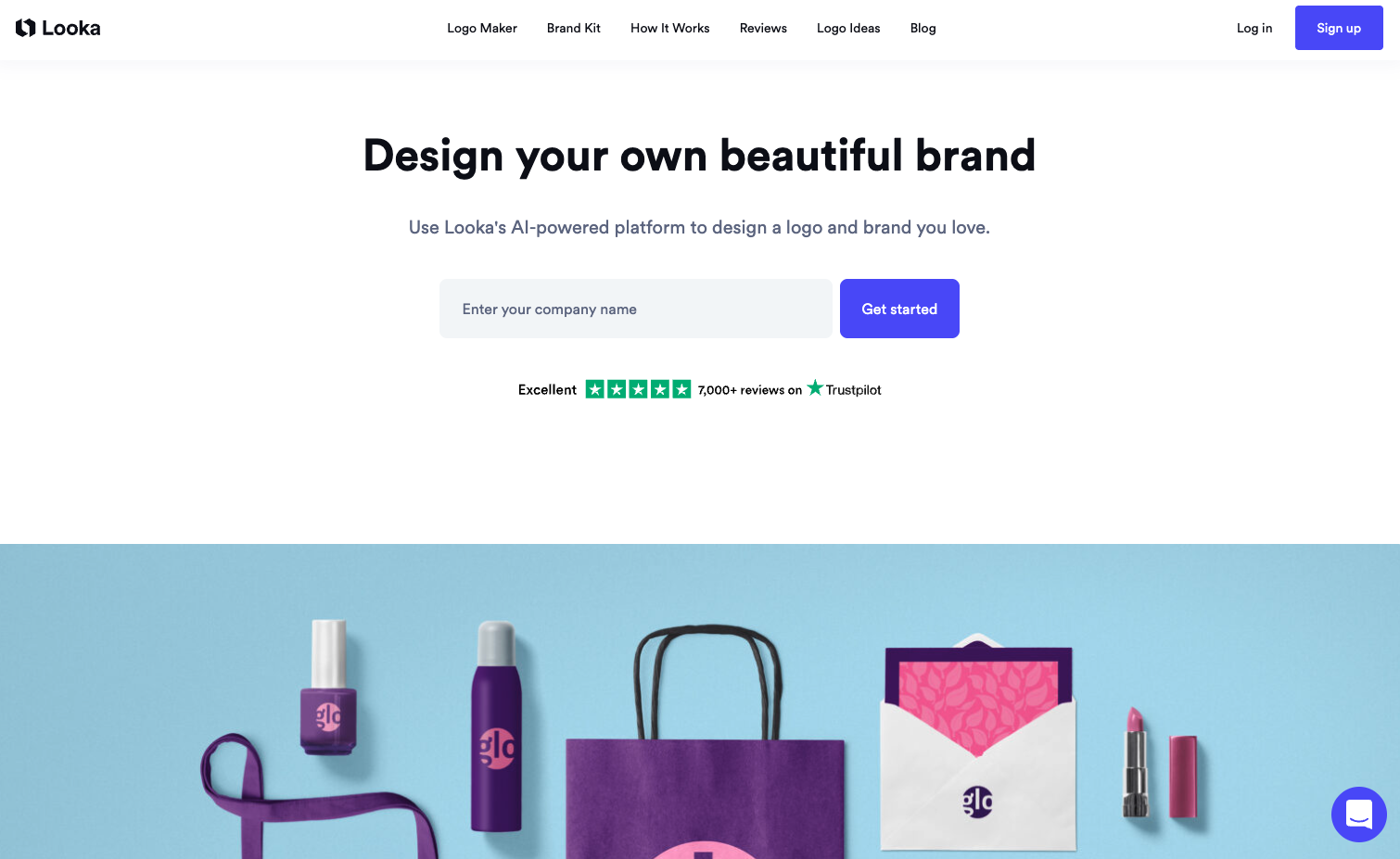
Looka uses AI to generate logo concepts and complete brand kits based on your preferred styles and industry. It’s a quick way to explore early identity ideas or produce polished branding assets with minimal setup time.
Pros:
- Fast brand identity creation. Goes from idea to polished assets in hours, which is ideal for tight deadlines and small branding projects.
- Great for freelancers. Perfect when you are juggling multiple clients and need to deliver quick, professional-looking concepts.
- Easy for designers and clients. The interface is simple enough to support client collaboration or early-stage exploration.
Cons:
- Not suited for complex branding. Advanced identity systems or concept-driven branding require deeper strategy than Looka can provide.
- Limited customization. You can refine the AI results, but you are still working within preset boundaries rather than creating a logo from scratch.
- Costs can add up. One-off logo packages become expensive if you manage many clients or need frequent downloads.
Looka's pricing:
- Basic package: $20 one-time. Single logo file in low-resolution format with transparent background.
- Premium package: $65 one-time. High-resolution logo files, vector formats, social media templates, and brand kit with colors and fonts.
- Brand Kit subscription: $96/year. Everything in Premium, plus unlimited design assets, business card designs, social media templates, and brand guidelines.
7. UX Pilot
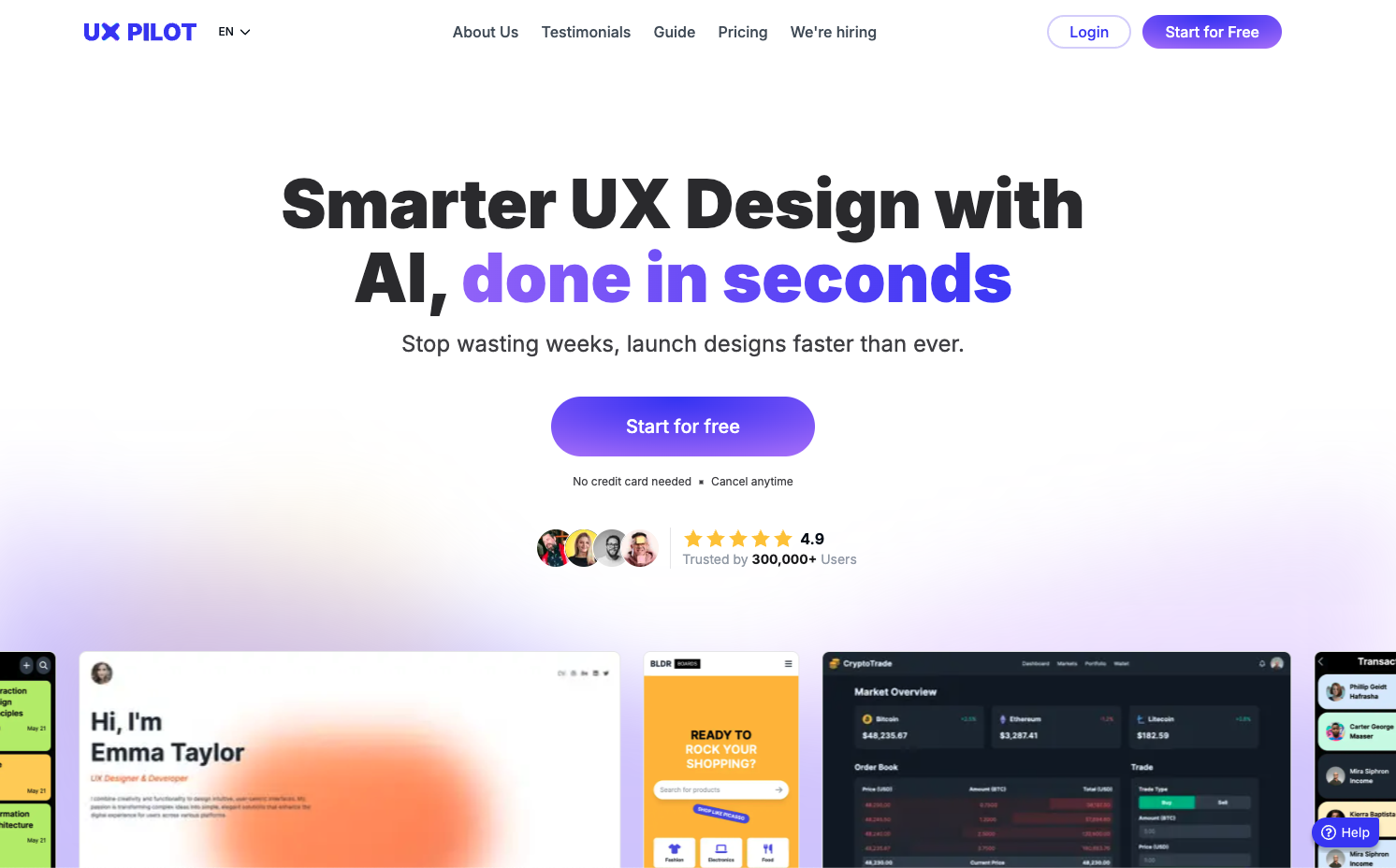
UX Pilot generates UI screens and components directly from text prompts while applying foundational UX principles. It’s a practical solution for quickly producing wireframes and prototypes that can be refined in tools like Figma.
Pros:
- Huge speed boost for wireframes. Tasks that might take hours to sketch manually can be generated in minutes, speeding up early design phases.
- Great for MVPs and quick prototypes. Perfect when you need to validate ideas or show stakeholders functional concepts fast.
- Easy copy-paste workflows. The output integrates smoothly with your existing design tools, so you are not locked into a separate ecosystem.
Cons:
- Limited visual design focus. UX Pilot prioritizes structure and usability, not branding or polished graphic design.
- Screens still need refinement. The generated layouts offer a strong starting point, but they require a designer’s touch to become production-ready.
- Not suited for brand-heavy projects. Since it emphasizes function over visual identity, it is less helpful for branding or marketing-driven design work.
UX Pilot's pricing:
- Free plan: 10 AI generations per month with basic features and community support.
- Standard plan: $12/month. 200 AI generations monthly, priority support, export to Figma, and access to premium templates.
- Pro plan: $39/month. 1,000 AI generations monthly, advanced customization options, team collaboration features, and priority processing.
8. Khroma
Khroma learns your color preferences and generates personalized palettes tailored to your visual style. It provides realistic previews for web and typography, helps you save and organize palette collections, and lets you export them for use in design tools. This makes it especially useful for branding and identity work where consistent, intentional color choices are essential.
Pros:
- Great for color-focused projects. When color plays a major role in branding or visual identity, Khroma offers curated options quickly.
- Supports consistent visual identity. Because it learns from the user’s preferences, it naturally encourages cohesive color choices across projects.
- Intuitive and free to use. The interface is simple, and the core features are available at no cost, making it accessible to all designers.
Cons:
- A highly specialized tool. Khroma focuses solely on color, so designers will still need other tools for full design work.
- Does not generate complete designs. It handles palettes only, not layouts, typography, or full visual systems.
- Limited editing flexibility. Users can save and organize palettes, but adjusting individual colors is more restricted than in traditional color tools.
Khorma's pricing:
Free: Unlimited access to all features including personalized color palette generation, color search, and palette organization.
9. Uizard
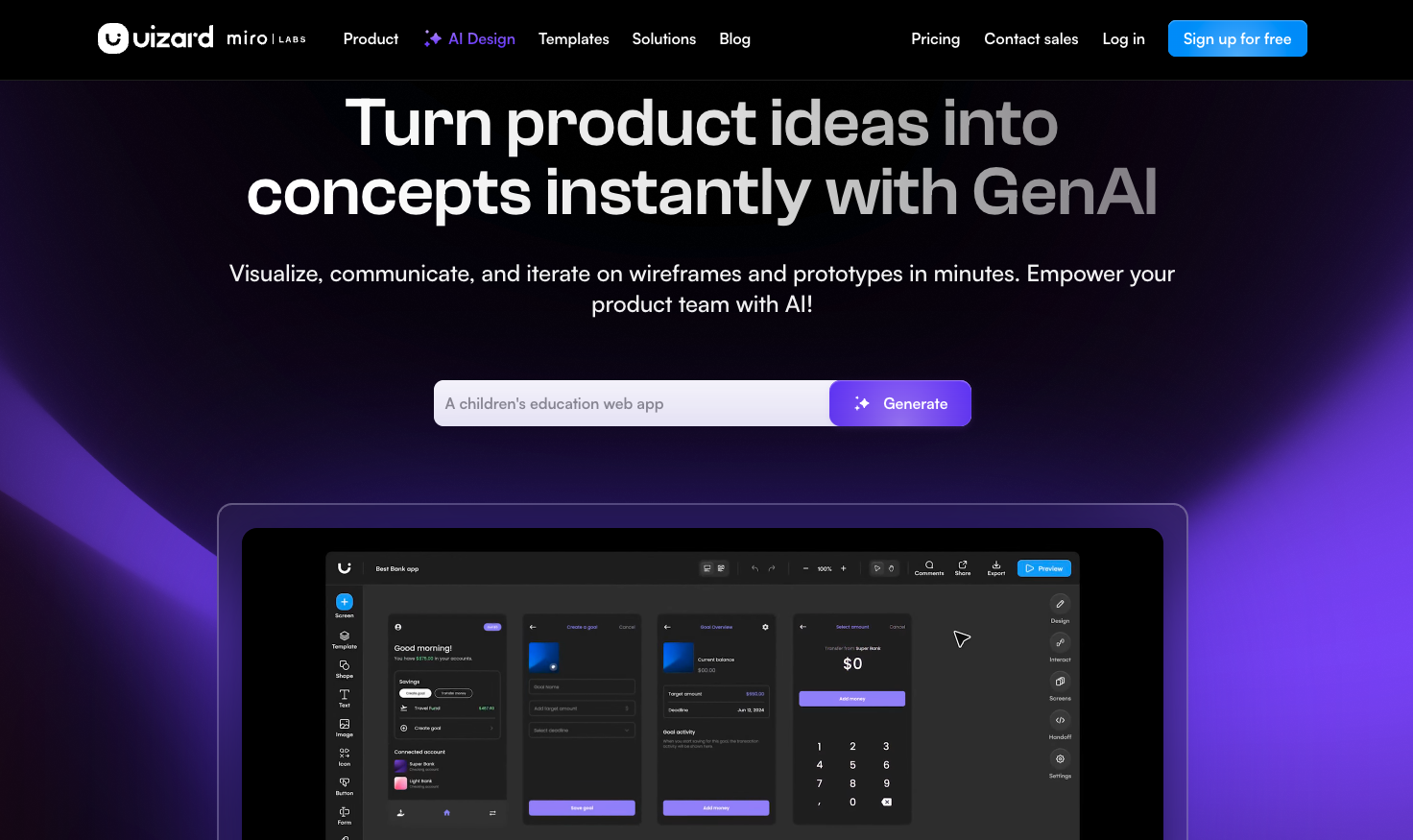
Uizard transforms sketches and text descriptions into interactive UI prototypes using AI, speeding up early design stages dramatically. It’s great for pitching ideas, testing user flows, and building quick digital mockups without complex software.
Pros:
- Very beginner-friendly. The learning curve is minimal compared to tools like Figma, making it accessible for designers who are new to UI work.
- Great for quick prototype presentations. Perfect for pitching ideas to clients or stakeholders with polished, clickable prototypes created in minutes.
- Fast turnaround. Moving from concept to shareable prototype is extremely quick, which is valuable in fast-paced product environments.
Cons:
- Limited free features. Many useful capabilities sit behind paid plans, which can be restrictive when testing the tool.
- Not as robust as Figma. It lacks the advanced systems, components, and collaboration features needed for full-scale product design.
- Less suited for branding or print. Uizard is built for digital interfaces, not logo design, marketing assets, or print work.
Uizards's pricing:
- Free plan: 2 active projects, limited AI generations, and basic export options.
- Pro plan: $12/month. Unlimited projects, unlimited AI generations, advanced components, team collaboration, and presentation mode.
- Business plan: $39/month. Everything in Pro, plus priority support, advanced design systems, custom branding, and team management tools.
10. Microsoft Designer
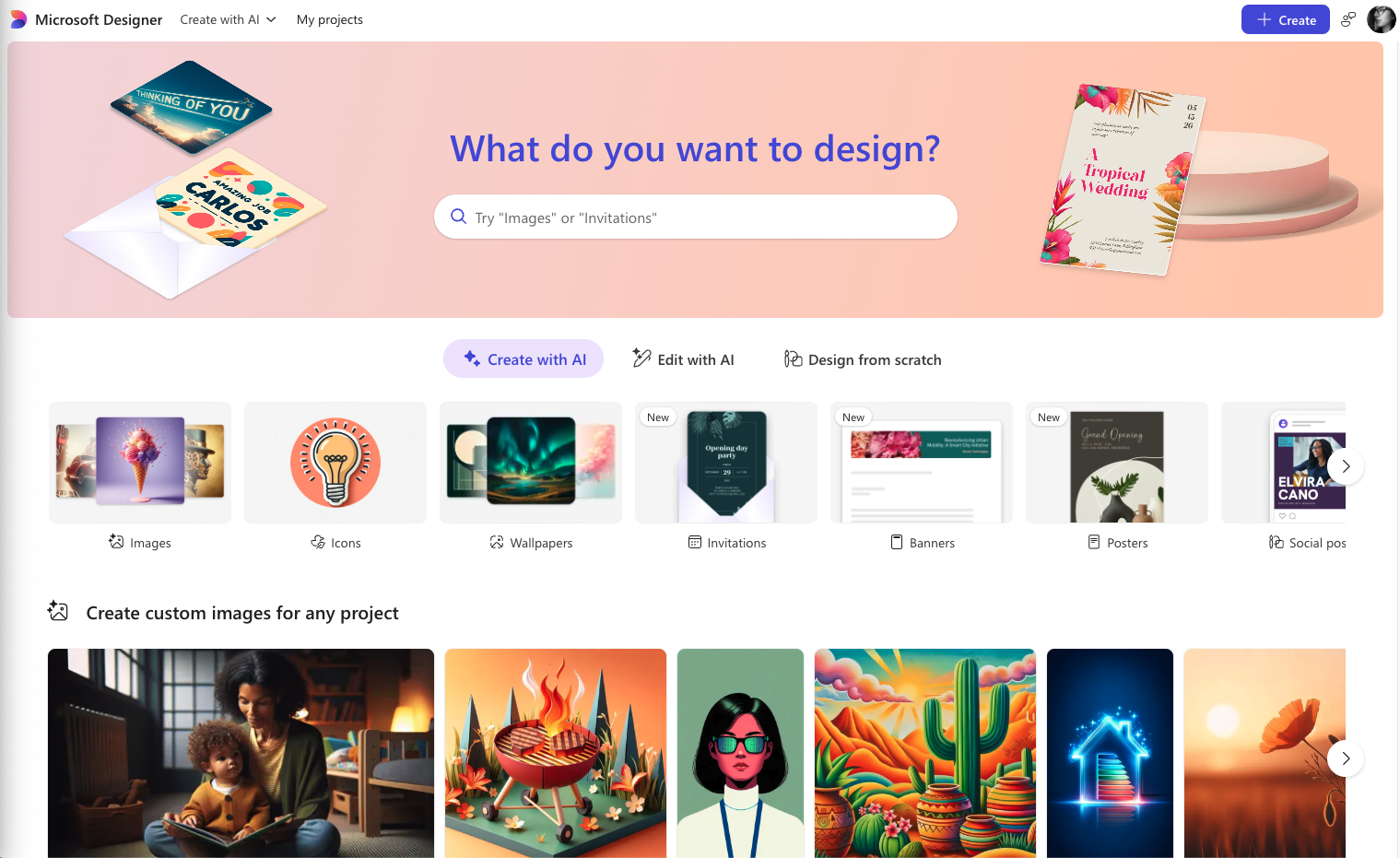
Microsoft Designer automatically suggests layouts, colors, and typography based on your content, making it easy to create polished graphics in minutes. It’s ideal for designers and businesses producing high-volume social or marketing materials.
Pros:
- Very beginner-friendly. The interface is intuitive and requires minimal design knowledge, making it accessible for non-designers or those new to graphic design.
- Great for business or marketing materials. If you're producing corporate presentations, social media graphics, or professional communications, Designer handles these efficiently.
- Simple automation for non-design tasks. The AI takes care of repetitive formatting and resizing work, freeing you up to focus on content and messaging rather than technical execution.
Cons:
- Less control than other tools. Compared to professional design software or even more robust AI platforms, Designer offers limited customization and creative flexibility.
- Smaller asset library than competitors. While functional, the selection of templates, stock images, and design elements is more limited than what you'll find in Canva or Adobe Express.
- Best suited for basic design tasks. For complex branding, detailed illustration work, or sophisticated layouts, Designer's capabilities fall short of what professional designers typically need.
Microsoft designer's pricing:
- Free: Basic access with limited AI generations and standard template library.
- Microsoft 365 Personal: $6.99/month. Enhanced Designer features, premium templates, Copilot integration, and priority processing.
- Microsoft 365 Family: $9.99/month. Everything in Personal for up to 6 users, shared templates, and collaborative features.
How to add AI skills to your graphic design resume and portfolio
Now that you know the right AI tools, the next step is proving to employers that you can use them effectively.
One thing is the portfolio that usually speaks for itself, but you shouldn’t forget about your resume where you can list and showcase all the skills you know.
You can:
- Show AI skills throughout your resume. Instead of listing tools in isolation, weave them into your work experience and project descriptions. This shows employers exactly where and how you used AI in real design tasks.
- Use the right keywords and tool names. Pair specific tools (such as Firefly, Midjourney, or DALL·E) with practical terms like AI-assisted workflows or generative image creation to make your skills easy for recruiters and ATS systems to recognize.
- Create a dedicated AI skills section. A separate, well-formatted AI Skills section makes these abilities easy for employers and ATS systems to spot and helps your resume stand out.
- Balance AI with core design skills. Highlight fundamentals like concept development, visual strategy, and storytelling. AI supports these abilities, but your creative judgment is what gives your work meaning and direction.
Try our AI Resume Writer and have your resume ready in minutes!

Conclusion: Your creative career, amplified by AI
AI is now part of everyday design work, and knowing how to use these tools makes you a stronger, more adaptable designer. Each platform offers something different, from faster ideation to better branding support or quicker UI prototypes.
Combined with solid design fundamentals, AI can help you work smarter and present your ideas more clearly.
Use it as a partner in your creative process and let it help you build a design career that stands out.
About the author
Alina Midori Hernández is a journalist-turned-writer at Envato with a passion for design and the creative world. You can find her taking often-imperfect culinary leaps when she's not writing or editing.